.png)
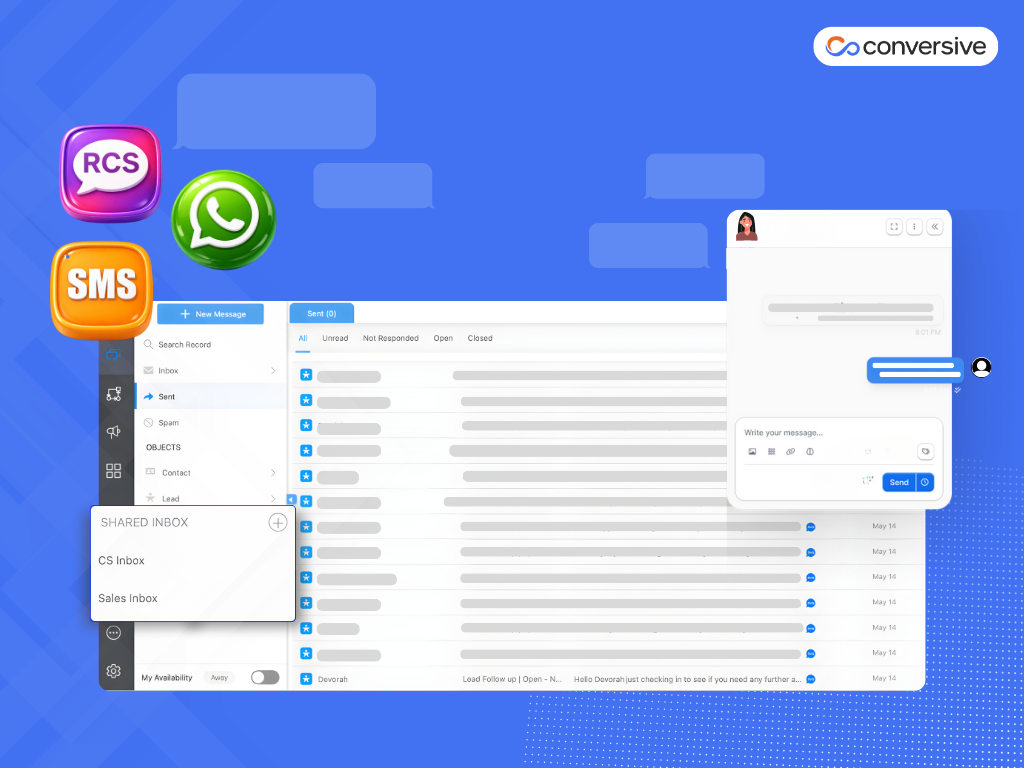
Shared Messaging Inbox for Teams: SMS, WhatsApp & RCS Collaboration
A shared messaging inbox lets teams manage SMS, WhatsApp, and RCS from one interface, ensuring faster response times, better collaboration, and full visibility. Learn how it works, why teams use it, and how Conversive supports secure, scalable messaging.
Think of a shared messaging inbox like a support@company.com email address but for messaging. It’s a single business number (SMS, WhatsApp, or RCS) that multiple team members can access and respond from. Instead of routing messages through individual phones or siloed systems, all communication lands in a unified, collaborative workspace.
In a shared messaging inbox, every message thread comes with full context: customer name, contact history, timestamps, and channel of origin. Team members can assign, comment, escalate, or resolve queries directly without switching tabs or losing visibility. This setup is especially valuable in support, sales, admissions, and service environments where timely, coordinated responses matter.
How a Shared Inbox Works in Messaging?
A shared messaging inbox functions as a centralized space where teams can manage all customer communications in one unified interface. Instead of dealing with multiple devices, personal accounts, or siloed tools, businesses can use a single business number for SMS, WhatsApp, or RCS that multiple team members can access and operate from.
Here’s how it works in practice:
i) Unified Chat Panel
All customer threads across channels appear in a single view, showing sender details, the last message, timestamps, and assignment status.
ii) Channel Indicators
Each thread is marked with an icon (SMS, WhatsApp, RCS) so agents instantly know which platform they’re responding on.
iii) Full Conversation History
Clicking into a thread reveals complete message history, contact details, and internal notes providing agents with the full context before replying.
iv) Replying as a Team
Agents respond using the shared business number, ensuring consistent tone and branding. The platform tracks who sent each message for accountability.
v) Thread Assignment & Ownership
Conversations can be assigned to specific agents, preventing duplication and ensuring clear ownership.
vi) Private Notes & Collaboration
Team members can leave internal notes or tag colleagues to provide updates, context, or ask for help without the customer seeing it.
vii) Activity Logging
Every action such as reply sent, thread assigned, note added is time-stamped and logged, creating a transparent record useful for audits, training, and performance reviews.
Core Features of a Shared Messaging Inbox
A shared messaging inbox is a collaboration engine for teams enabling clarity, speed, context, ownership, and performance tracking across modern messaging channels like SMS, WhatsApp, and RCS.
Below are the core capabilities that define a high‑performing shared inbox, with practical details you can use:-
1. Access and Visibility: Shared Awareness Across Your Team
At the heart of a shared inbox is the ability for multiple agents to view and interact with the same conversations without conflict or blind spots.
i) Multi‑Agent Access to One Number
Instead of routing conversations to individual phones or accounts, a shared inbox allows multiple team members to log in and work from the same business number. For example, support@ handles email similarly, +1234567890 becomes your team number for SMS or WhatsApp conversations.
ii) Full Shared View of Conversation History
Every thread includes the complete message timeline, profile details, channel tags, and previous interactions. Agents don’t have to guess what was said before; they see the full context upfront.
iii) Real‑Time Synchronization
As soon as one agent reads a message or updates a thread (e.g., marks “resolved”), that information propagates instantly across devices. This prevents duplicate replies or wasted effort when multiple agents are online.
For example, an incoming WhatsApp message from “Jane Doe” about her order shows up with her past support chats, timestamps, and channel icon. Agent A can tag it as “urgent” while Agent B can see that tag and take ownership in real time.
2. Team Collaboration Tools: Built‑In Workflows for Messaging Teams
A shared inbox is only as good as the team workflows it enables.
i) Conversation Assignment & Ownership
Inboxes let you assign specific threads to specific agents. This means no more: “I thought someone else was handling this.” When an agent takes ownership, the thread shows that clearly so everyone knows who is accountable.
ii) Internal Notes & Mentions
Agents can leave private notes attached to conversations which is useful for briefing colleagues, asking questions, or providing historical context. These notes don’t go to the customer, but they help teammates stay aligned.
iii) Shared Drafts & Reviewed Responses
In high‑compliance industries, it’s common for replies to be reviewed before sending. A shared inbox can allow drafts to be collaboratively prepared and reviewed before they go live.
iv) Collision Avoidance
Built‑in logic prevents two agents from typing and sending a response at the same time, reducing confusing overwrites or mixed messages.
3. Routing and Automation: Scale Without Chaos
For teams that handle large volumes or distributed responsibilities, automation is essential.
i) Smart Auto‑Assignment
You can configure routing rules that automatically assign incoming messages based on:
- Agent availability
- Keywords (e.g., “refund,” “urgent”)
- Message source (SMS vs. WhatsApp)
- Even customer priority tier
This reduces manual triage and speeds up first response time.
ii) Status Labels and Workflows
Each thread can have statuses like New, Open, Pending, Escalated, or Closed. These are more than tags. They can trigger different automation paths. For example, if a thread is in “Pending” for > 24 hours, the system can send a reminder to assigned agents.
iii) Canned Responses & Scheduling
For common queries (e.g., business hours, appointment confirmations), agents can use pre‑approved replies. Scheduling lets you send messages at appropriate times (respecting time zones and quiet hours).
iv) Priority Flags and SLA Alerts
If you promise a 2‑hour response SLA, a shared inbox can surface threads that are close to breaching this threshold prompting faster action.
4. Omnichannel Integration: One View, Multiple Channels
Customers text where they want. A shared inbox makes those channels manageable from one place.
i) Unified Conversations from SMS, WhatsApp, RCS, and More
Instead of toggling between apps, agents see threads from all channels side by side, complete with channel icons and filters.
ii) Channel Metadata and Segmentation
You can filter by channel (e.g., show only WhatsApp threads) or search across channels to find cross‑channel customer journeys.
iii) CRM and Helpdesk Context
If your shared inbox integrates with your CRM or ticketing system, incoming messages bring customer data with them like purchase history, support tiers, account status, so reps are always informed.
5. Reporting and Compliance: Measured, Safe, and Auditable
A shared messaging inbox isn’t just about replying faster, it’s about operating with control and visibility.
i) Analytics Dashboards
Track key performance indicators like:
- First response time
- Resolution time
- Volume by channel
- Agent activity and workload
These insights help teams identify bottlenecks and optimize staffing.
ii) Audit Logs and Permissions
Every action such as message sent, note added, assignment changed is logged with who did what and when. This is vital in regulated industries (healthcare, finance, legal) for both compliance and internal review.
iii) Retention Policies
Based on regulation or company policy, you can define how long messages are retained, archived, or sanitized, helping meet GDPR, HIPAA, or industry standards.
iii) Role‑Based Access Controls
Not every agent should see every detail. Admins can define who sees which threads and metadata, and what actions they can perform.
A compliance reviewer can generate a report showing all SMS interactions from the last 90 days, complete with timestamps and agent IDs supporting audit readiness.
These features work together to make shared messaging inboxes far more effective than a collection of personal phone numbers or standalone chat tools. Teams gain context, collaboration, accountability, and compliance, which translates into faster responses, fewer mistakes, and better customer experiences.
How a Shared Inbox Works in Messaging
Think of a shared messaging inbox as your team’s command center for customer conversations across SMS, WhatsApp, RCS, and more accessed through a single, collaborative interface.
Here’s how it works in practice:
1. Unified View of Customer Threads
Every inbound and outbound message whether it comes via SMS, WhatsApp, or RCS is captured and displayed in a centralized inbox. This inbox is accessible to all authorized agents.
Each message thread includes
- Sender name or phone number
- Channel icon (e.g., WhatsApp logo)
- Timestamp of last message
- Message content preview
- Assignment status (e.g., unassigned, assigned to Agent A)
- Conversation status (e.g., open, pending, closed)
This allows teams to see the full picture at a glance of what's urgent, what’s unresolved, and who’s handling what.
2. Agent Replies Come from the Business Number
All replies are sent from the shared business identity, not from personal phone numbers. Whether replying on WhatsApp or SMS, the recipient sees the same trusted sender, maintaining consistency.
- Agents don’t use their own WhatsApp accounts or SIM cards.
- The platform ensures messages are routed properly from the business channel.
- Even when multiple agents are online, only one can own a conversation at a time (unless configured for team view).
3. Behind-the-Scenes Tracking and Governance
While the front-end is a chat-like experience, the platform is quietly tracking every action:
- Who viewed or replied to a thread
- Internal comments added
- Status changes (open → pending → closed)
- Response time and resolution metrics
This combination of human collaboration and system intelligence is what makes shared inboxes powerful. They allow for faster responses, clearer ownership, and better oversight, even at scale.
How to Set Up and Use a Shared Inbox in Conversive
Getting a shared inbox up and running in Conversive is not complicated at all. Think of this like giving your team a shared workspace for messaging, one place where everyone can see, respond to, and manage customer conversations together.
Below is a clear, practical walkthrough you can follow from start to finish.
Step 1. Confirm You Have the Right Permissions
Before anything else, make sure your user account can create and manage shared inboxes. If you don’t see the options in your settings, it usually means your role isn’t enabled for this yet.
Ask your admin to grant you “shared inbox creation” permissions. Once enabled, you’ll see new options in the Conversations settings.
Step 2. Open the Conversations Settings Area
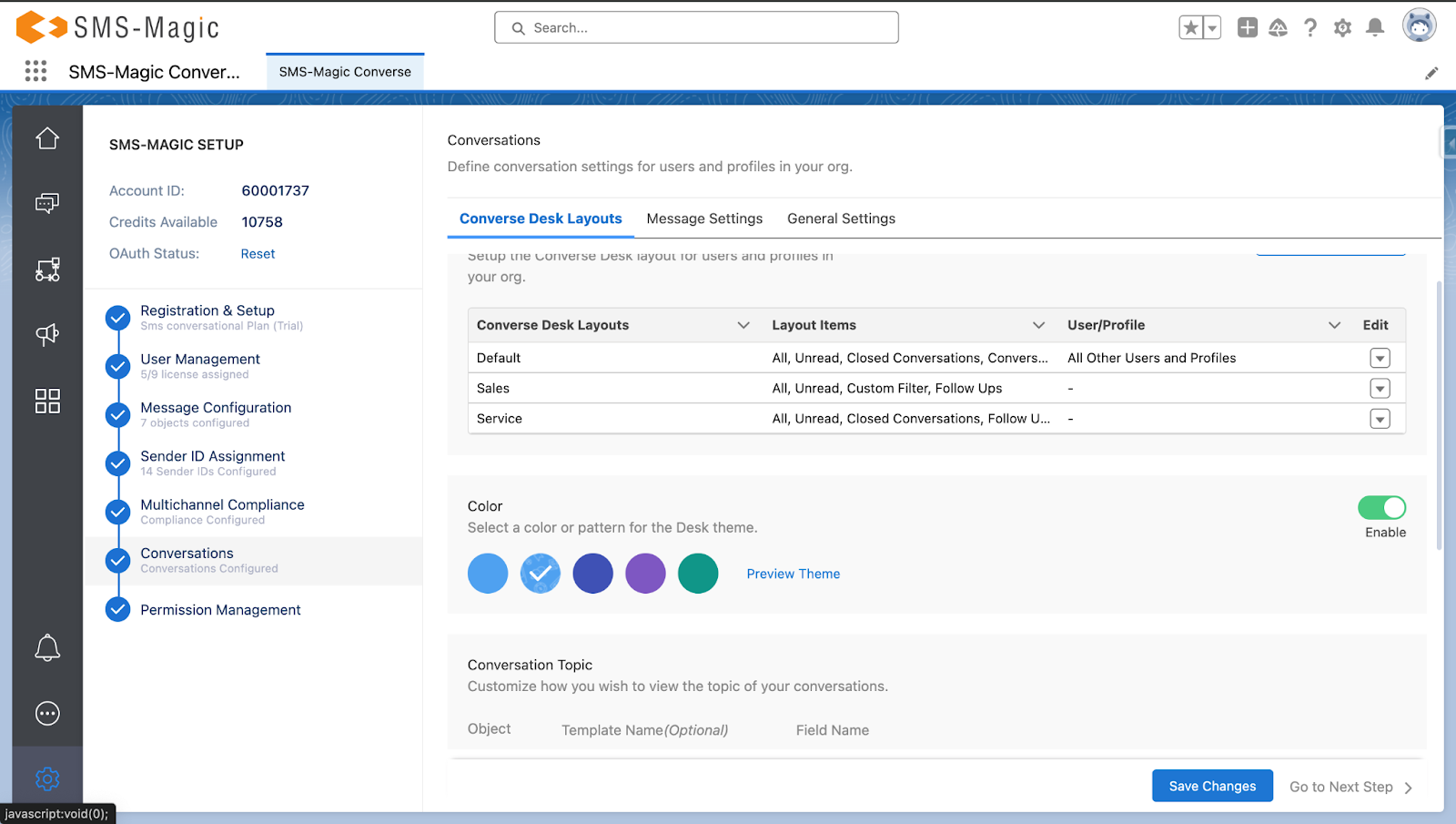
Once your access is confirmed:
- Go to the main navigation menu.
- Click Converse Settings.
- Look for a section labeled “Conversations”.
This is where you control how messaging behaves across your team including shared inboxes.
Step 3. Turn On Shared Inbox Creation
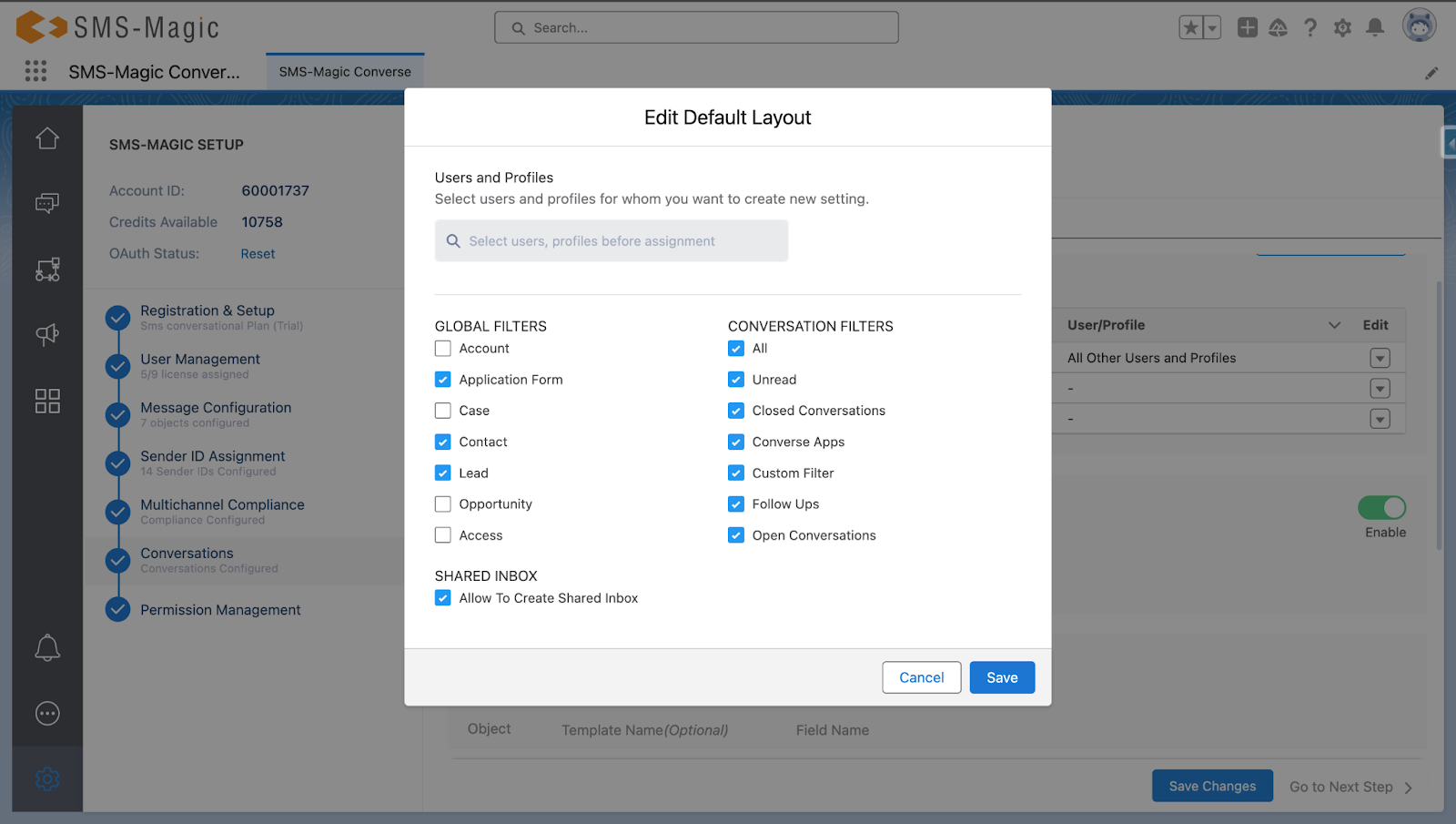
Inside Converse Settings:
- Find the tab named Desk Layouts.
- Locate the layout your team is using (often labeled “Default”).
- Click the Edit button next to it.
Inside the layout editor:
- Look for the checkbox “Allow to Create Shared Inbox”.
- Check it.
- Click Save.
This step unlocks the shared inbox option on the actual Conversations workspace. It’s like installing a feature switch. The interface won’t show the inbox options until this is enabled.
Step 4. Go to Converse Desk to Create Your Inbox
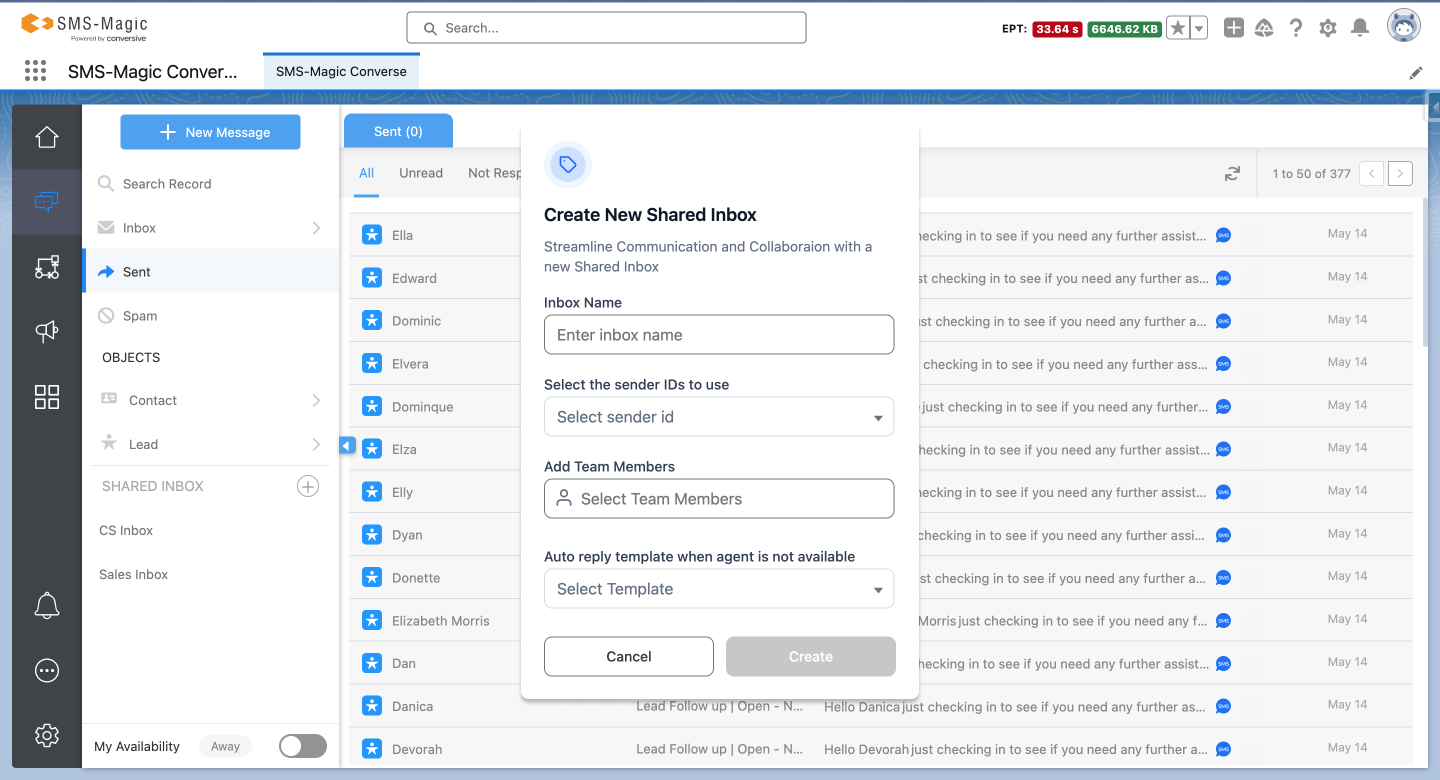
Now that shared inbox creation is turned on:
- Navigate to Converse Desk (your team’s messaging workspace).
- You’ll now see a panel or menu option for Shared Inbox.
- Click it and choose Create Shared Inbox.
You’ll be prompted to enter basic details:
- Inbox Name – Something descriptive (e.g., “Support Team” or “Admissions Chat”).
- Auto‑Reply Message – A friendly message people receive when you’re offline or busy.
Once you fill in these details, hit Create.
This is the point where your shared inbox becomes a real place your team can use.
Step 5. Personalize the Inbox with Smart Defaults
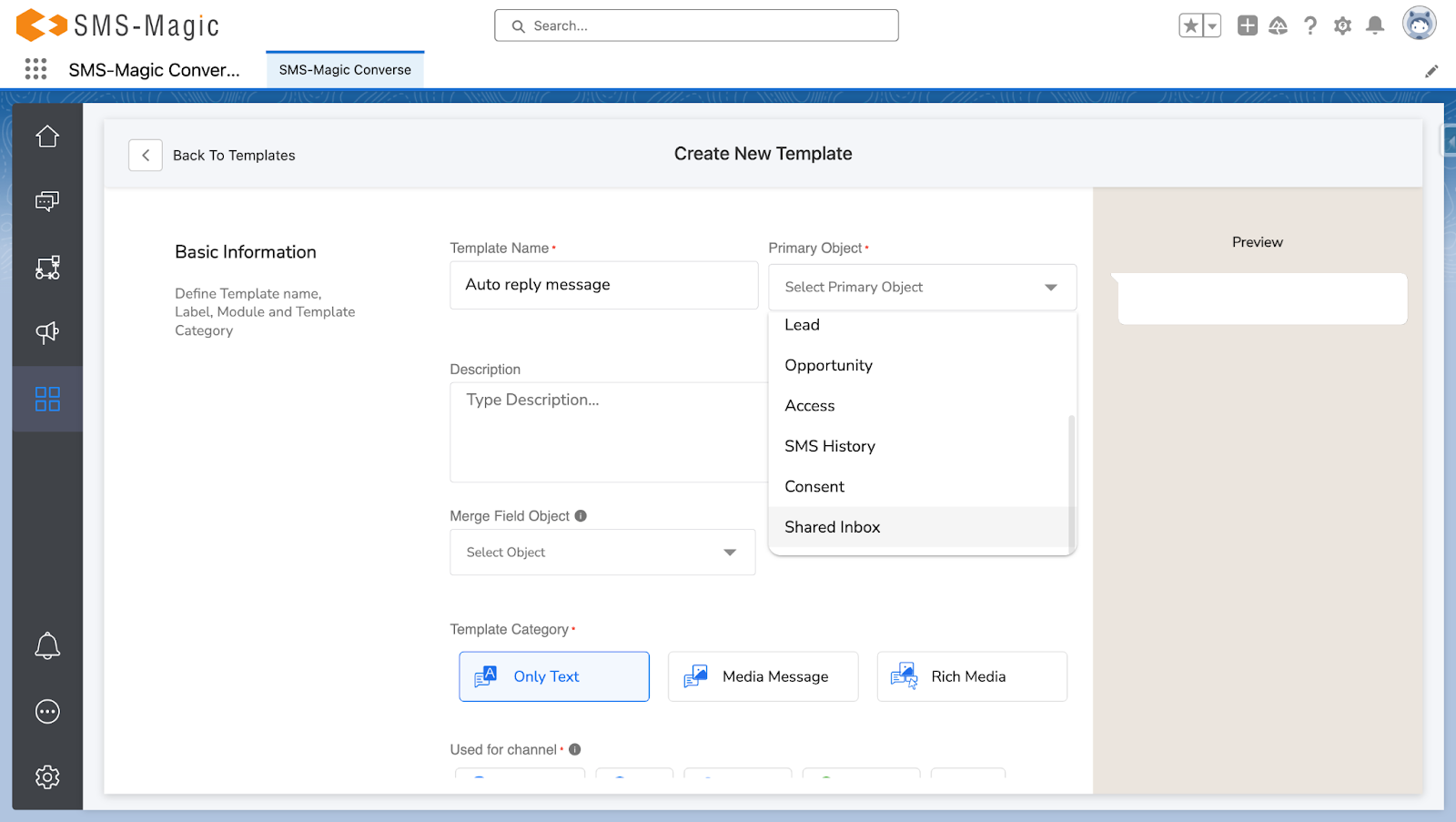
After creating the inbox, you can refine how it behaves:
- Auto‑reply templates: Short messages that set expectations (“We’ll get back to you within 2 hours”).
- Canned responses : Pre‑written replies for common questions.
- Status defaults: open, pending, resolved, so your team knows what stage each conversation is in.
These defaults make your shared inbox both professional and efficient.
Step 6. Start Working Conversations Together
Now that everything is set up:
- Incoming messages start appearing in the shared panel.
- Agents can assign threads to themselves or teammates.
- You can add private notes or mentions so others understand what’s happening.
- Using the shared templates speeds up replies and reduces errors.
At this stage you’re no longer relying on personal phones or inboxes, your team is collaborating in one place with full context.
Why Businesses Choose Conversive for Shared Messaging Inboxes
Conversive is a compliance-ready, enterprise-grade messaging workspace built for industries that need more than basic team chat.
Here’s what sets Conversive apart:
1. Built for Privacy-Critical Industries
Conversive is trusted by teams in healthcare, education, finance, and government where privacy, auditability, and operational reliability are non-negotiable. With support for HIPAA, GDPR, and industry-specific frameworks, your messaging workflows stay safe and compliant.
2. Omnichannel and Unified
Manage SMS, WhatsApp, and RCS together with one shared number. No channel switching or tool fragmentation. Whether it’s patient check-ins, student inquiries, or financial support, your team gets a clear, centralized view of every customer conversation.
3. CRM-Connected and Workflow-Ready
Conversive integrates directly with CRMs like Salesforce and Zoho, syncing contact data and conversation history. Automation tools help route, tag, and assign messages without manual intervention, while internal notes and shared drafts support fast, contextual collaboration.
4. Scales from 3 Agents to 300
Whether you’re a growing startup or a distributed enterprise team, Conversive grows with you. Admins can manage access, set permissions, define workflows, and analyze team performance from a single interface.
5. Global-Ready with Local Support
Operate across regions with multi-language templates, localized compliance, and global delivery infrastructure to ensure reliable communication. No matter where your customers are.
Ready to transform your team’s messaging workflows?
Book a Demo to see how Conversive’s shared inbox can help your team collaborate faster, respond smarter, and maintain compliance across channels.
Frequently Asked Questions
What’s the difference between a shared inbox and a shared email account?
A shared inbox is purpose-built for team collaboration. It includes message assignments, internal notes, workflow tools, and visibility controls. A shared email account, by contrast, is typically just one mailbox accessed by multiple people without clear ownership or tracking.
Can one number handle SMS and WhatsApp in the same shared inbox?
Yes. Platforms like Conversive allow teams to manage SMS, WhatsApp, and even RCS from a unified interface. Messages appear in a single thread, labeled by channel, making it easy for agents to respond without switching tools.
Is a shared inbox secure enough for sensitive industries like healthcare or finance?
Absolutely. Conversive includes end-to-end encryption, role-based access, audit trails, and compliance alignment with regulations like HIPAA, GDPR, and more making it suitable for trust-critical environments.
How does a shared inbox improve agent performance?
By tracking key metrics like response time, message volume, and resolution rates, shared inboxes help team leads balance workloads, monitor service quality, and coach agents with real data.
Can we integrate a shared inbox with our CRM or helpdesk?
Yes. Conversive integrates with popular CRMs like Salesforce and Zoho, as well as helpdesks and internal databases, so agents can access customer context and history right alongside the message thread.


.png)

Explore More